

Before you start
You need an imported app. See Import an app.Add a keyword
1
Select the market
The country filter at the top of the keyword monitor sets the storefront every add applies to, and shows the keyword count per market.
2
Add one keyword or paste several
A single add takes one phrase. Bulk add accepts a list, one phrase per line, and creates them all in the selected market. To add a list that carries countries, tags or notes, import it from a CSV file.
3
Read the first position
A keyword added by hand, by CSV import, by a market seed or by Save and track on a keyword field is checked within minutes, ahead of its popularity and difficulty, so its first position does not wait for the daily run. Until it lands the row says Checking and the table refreshes itself.
MANUAL. See Popularity, difficulty and opportunity.
Seed a market from its listing
The countries step of the guided setup suggests storefronts that read a language your listing ships. Tick one, leave Seed with its listing on and press the add button: asobeast captures that storefront’s listing and tracks up to 15 phrases from its title and subtitle, with the sourcesTITLE and SUBTITLE, so the market starts with keywords from its own text.
Each storefront reports its outcome on its row. The same seed is one request, POST /apps/{id}/market-seed with a country, and it answers:
A seed spends one refresh from your on demand allowance. See How do you add a market?
Track the same keyword in a second market
Switch the country filter and add the phrase again. That creates a second keyword row, checked by a second search. The two rows are genuinely independent: positions, popularity and difficulty all differ per storefront. They also cost twice as much, because each market multiplies daily search volume against one fixed budget. See Countries and markets and The daily pipeline and rate limits.Import keywords from a CSV file
Import CSV, beside Add keywords on the keyword monitor, tracks a list from a file. Use it to bring keywords over from a spreadsheet or another tool, to track the same list across several markets in one go, or to copy the keywords of one app to another with the file the keyword monitor exports.1
Choose a file
Pick a file with one keyword per row. CSV, TSV and plain text files are read, saved as UTF-8 or UTF-16, separated by commas, semicolons, tabs or pipes, so the file Excel writes on any regional setting works. Download template gives you a file with the right header. The file is read in your browser; only the rows are sent.
2
Check the columns
The dialog shows which column it read as the keyword, the country, the tags and the note, and whether it treated the first row as a header. Correct any of them in place. Rows without a country use the market selected in the dialog, which starts as the market you were looking at.
3
Review every row
The table lists each row with a status and, for a refused row, the reason. Filter it by status. Nothing is saved yet.
4
Import
The button says how many keywords it will track. Their first positions are checked within minutes, as for any new keyword.
Columns
A file needs a keyword column and nothing else. Headers are matched ignoring case, spaces and punctuation, soSearch Term and search_term are the same header. Every other column, such as position or popularity, is ignored.
The separator is read from the header row, so a file typed by hand whose later rows leave trailing cells empty, or carry an extra one, still splits into the same columns. Without a recognised header, the separator is used only when every row has the same number of cells. A file with no header row is read with its first column as the keyword. If a header is not recognised, switch First row is a header on and choose the column yourself. A country is the two letter storefront code, such as
us, gb or pl; it must be a storefront of the app’s store. Upper case is fine. A country written as a name, such as Poland, or as a flag, such as 🇵🇱, is read as that storefront too.
The keyword export is a valid import file. It ends with a country column, so a file exported from the pl market tracks in pl whatever market the dialog starts on. Export from one app and import into another app of the same store to copy a keyword set, tags and notes included.
Files from other tools
The keyword export of another tool is read by its column headers, so you can usually choose it as it is. The dialog shows which columns it recognised. If a header is not recognised, switch First row is a header on and pick the column yourself.
When a file names the app or the store of each row, in columns such as
App Id, App Name, Platform or Store, the dialog imports only the rows of the app and store you are on and lists what it left out. If the file holds several apps and none is yours, choose one under App to import, or All apps, before you import. A file for a single app is imported whole whatever that app is called, so you can copy the keywords of one app to another this way.
Imported keywords start tracking today. Positions, popularity and difficulty in the file are never imported, because asobeast measures them for each market itself, so no rank history comes across.
What each status means
The import tracks the new and resumed rows together, or none of them. Rows that are skipped or refused never stop the others, and the dialog says how many were skipped. When rows are over the limit, the review states how many keyword markets your plan uses out of its limit and, on a hosted plan with a larger tier, links to the plans. Importing the same file twice is safe: the second time every row is already tracked.
Imported keywords are tracked like keywords you typed (source
MANUAL). The paused state of a keyword in the file is not imported, and the tags and note of a keyword that is already tracked are never overwritten; change those on the row menu. See Tag keywords and keep notes.
A phrase that another app of your workspace already tracks in the same market costs no extra keyword market and no extra store request, because the search is shared.
What an import costs
Every keyword market an import opens adds the same daily store requests as adding it by hand, one a day on the App Store and eight a day on Google Play, and each new keyword is scored once. A market the app tracks no keywords in yet also adds the daily refresh of its listing, one request a day for the app and one for each competitor. See What is a market listing? The dialog states the requests a day the import adds, listing refreshes included. The platform operator also sees what share of the store’s daily capacity that brings it to, and a warning from 85 percent. See Watch your request budget. One import takes up to 500 rows, and fewer when long notes make the request large. A longer file is imported in parts: the dialog says which lines the part holds, you review and import it, and the next part is reviewed once the one before it is tracked, so its statuses and your keyword limit already count what you imported. A change to the columns, the app or the market starts again from the first part, where what you imported already shows as already tracked. When a part has nothing left to import, Skip to part 2 (and so on) moves on to the next one, so choosing the same file again, or a longer export of it, continues where you left off. Closing the dialog keeps the parts you imported. On a hosted plan, rows beyond your keyword limit are listed as over limit and skipped, so you can see what fits before you confirm. Rows the dialog leaves out because the file names another app or store are never sent. A single line too large to send, such as one with an enormous note, is refused with its line number.Import through the API
The dialog sends JSON rows, so a script can do the same:POST /apps/{id}/keywords/import/preview answers, for every row, what an import would do and writes nothing, and POST /apps/{id}/keywords/import runs it. The preview counts against the read budget and works with a read only token. A row’s own country may be in either case, but the request level country, the default market for rows without one, must be a lower case storefront code such as us. See Rate limits and quotas and the API reference.
Both answers carry the same fields. summary and results describe the plan, row by row. On the import, imported counts the keywords that request actually tracked or resumed, which is lower than new plus resume only when another request tracked some of the same keywords in between. quota.used counts the keyword markets in use when the answer was made, so after an import it already includes the rows just tracked.
See Play installs per search term
The keywords page of a Google Play app shows a Play installs column: the acquisitions and the store listing visitors that the keyword brought as a Google Play search term, from the newest complete month Google reported it, or the month in progress when it is the only one. The tooltip names the month. A dash means Google reported no visitors for that term, or that the workspace has not connected the Google Play Console. The column sorts like the others, hides on a phone and can be hidden from the Columns menu. See Installs per search term.See what each market reads
The 100 character iOS keyword field never appears on the public listing, so asobeast cannot read it. You type it on the metadata page, once for each localization your app ships. See Edit the iOS keyword field. The keywords page only reports. Its last card shows what the market you selected reads.1
Choose the market
Pick a market in the country filter. The card is named after it, for example What US search reads, and its header counts the unique words in the fields that market reads.
2
Read the rows
Each row is a localization your app ships and that storefront reads, default first, with its role, Default or Additional, and the characters its field uses of 100. An empty field says Empty.
3
Edit where it belongs
Edit opens that localization’s editor on the metadata page. The card also folds the localizations the storefront reads that your app does not ship into a line you can open, with a link to add one.
?fieldLocale= opens the page as usual and the parameter does nothing there. The metadata page uses it to open an editor.
The keyword field is App Store only. Google Play has no keyword field, so the card does not appear for a Play app. See How does asobeast keep a keyword field per localization?
Get keyword suggestions
Suggestions come from four places.
When one of several store lookups fails, the suggestions that answered are kept.
Competitor searches read the title and subtitle of each competitor’s listing in the market shown (the title and short description on Google Play) and keep the phrases of two words or more, up to five, as seeds. Phrases that several competitors use come first. A phrase that only one competitor uses seeds too, unless it is only that competitor’s brand name, the first part of its title. The store’s search suggestions then say what people type around each seed. A search must contain the words of its seed, and asobeast leaves out phrases you already track in that market, competitor titles and app names. Each row names its seed and how many competitors use it, so a row from one competitor is a weaker signal than a row from several. When a competitor has no listing in that market yet, its home listing is read. One lookup spends one keyword suggestion. An app with no competitors, whose competitors have no listing yet, or whose listings hold no phrase of two words or more spends none.
A suggestion lookup is the one user initiated exception to the rule that store requests only happen in the queue. It is bounded by a person clicking, so it stays small, but a lookup that reaches the store spends one request of the hourly suggestions allowance. The Search tab with no active tracked keyword and the More by developer tab with no developer id in the newest listing have nothing to ask the store, so they answer an empty list and cost nothing. See Rate limits and quotas.
Deep search runs the store suggestion endpoint against a seed phrase and every one letter extension of it, queued as separate probes. It belongs to the market selected on the keyword monitor, so the same seed in two storefronts is two independent deep searches with their own results and their own budget. See Countries and markets.
Starting a deep search spends one of the plan’s daily deep searches, and a term whose 27 lookups are all stored for today, or still waiting in the queue, costs nothing. The lookups queue behind the daily run’s own jobs, so during the daily run a deep search can take longer than its usual two minutes. See Rate limits and quotas.
Seasonal suggestions
The API and the MCPkeyword_suggestions tool also offer a seasonal strategy. The web app does not show it. It reads a fixed calendar and suggests the keywords of every event that is running or starts within 14 days, in UTC. The keywords are English, so an event is offered only in the English language storefronts (Australia, Canada, India, Ireland, New Zealand, the Philippines, Singapore, South Africa, the United Kingdom and the United States) that observe it. Any other storefront gets an empty list, as does an English one between events. The storefront is the app’s home market, or the country you pass.
Mother’s Day is the second Sunday of May where it is offered. The United Kingdom and Ireland keep Mothering Sunday in March, which the calendar does not cover. The End of Year event suggests
goals with the coming year, so goals 2027 while 2026 ends.
Track combinations from your listing
The Keyword combinations card, below the suggestions, lists every phrase of one to three words that the words of your listing can form: the title, subtitle and keyword field on the App Store, and the title and short description on Google Play. Open it to see the list; the card stays closed until you do, and the address remembers that it is open. Words are lowercased, stopwords such as app, free and best are left out, and so are words of one character. A phrase is a set of words, shown in the order its words first appear in the listing, because word order does not change what the App Store matches. See What does each store index?
Combinations and coverage answer different questions. Coverage on the metadata workbench asks whether a tracked keyword appears word for word inside one field. Combinations ask which phrases your listing’s words can form across fields, so a phrase can be a combination without being covered.
Tick phrases and choose Track selected, or choose Track all shown to track every phrase the filters keep that is not tracked yet. A confirmation states how many keywords that is. Each tracked keyword adds one store search a day in that storefront and counts against your plan’s keyword limit, so read Watch your request budget before tracking hundreds.
The list comes from your home listing. Coverage and relevance of a keyword read its own market’s listing, but the combinations card stays on the home listing, and in another market it points you back to it. A listing forms at most 2,000 phrases in the list, shortest first; when it forms more, the card says how many and that the first 2,000 are listed.
Bulk manage keywords
Select rows with the checkboxes and the bar at the bottom of the table shows what you can do with them: Pause, Activate, Tag and Remove, and Export CSV for the selected rows only. Pausing keeps the history and stops the daily check, which is the right move for a keyword you may want back. Remove asks first and stops tracking: the ranking history stops accruing and a keyword you add again starts a new gap. Pause, Activate and Remove send one request for up to 500 keywords, so a large selection costs one write against your plan’s request budget rather than one per keyword. A selection over 500 is sent in several requests, one after another. Activating keywords that your plan has no room for is refused as a whole, with the limit in the message, and nothing changes. A keyword the request cannot find any more, for example because it was removed in another tab, is skipped and counted in the message. When a request fails the selection stays, so you can try again. Tag still changes one keyword at a time. Buckets classify scored keywords automatically so a large list stays readable.
An unscored keyword has no bucket until the weekly scoring run reaches it.
Tag keywords and keep notes
Tags and notes record what asobeast cannot work out for itself: which keywords are your brand, which carry the business, which are an experiment, and why each one is tracked. Open the row menu of a keyword and choose Edit tags and note. Type a tag and press Enter or a comma, or pick one of the suggestions:brand, core, testing, then the tags already used in this market. Backspace in the empty field removes the last tag. Save writes both at once.
To tag many keywords at once, select them and choose Tag in the bar that appears. Type or pick one tag, then add it to the keywords that do not have it yet or remove it from the keywords that do. A keyword already at 8 tags is skipped and named.
The Tags filter keeps the keywords that carry any of the tags you tick. Tags and notes belong to the keyword in its storefront, so the same phrase tracked in two markets has its own tags and note in each.
Read the table
Click a column header to sort by it, and click it again to reverse the order. The arrow in the header shows the direction, and the page address carries both assort and dir, so a copied link opens the same view. Scores and weekly change sort best first, position and names sort from the top, and a keyword with no value sorts last either way.
A visit that names no sort of its own opens with the last sort you chose on this table, which the browser remembers. A link that names a sort or a direction always opens in that order.
The controls above the table narrow the rows without reloading them.
Every active filter shows as a chip under the controls. Remove one chip to drop that filter, or use Clear all. The count next to the controls reads how many keywords are shown out of how many are tracked in the market, and Export CSV exports exactly the rows shown, in the order shown. The grade words are defined in How are scores graded?.
A search with quotes ignores case, punctuation and extra spaces, so
"Habit Tracker" finds habit tracker and not habit tracker app. Accents count, because the stores treat café and cafe as different phrases. A quote with no closing quote is dropped and the rest is searched as plain text, and the chip reads Exact phrase only when both quotes are there.
The Tags column shows up to three tags and how many more a keyword carries. A note icon next to the keyword shows its note when you point at it or focus it.
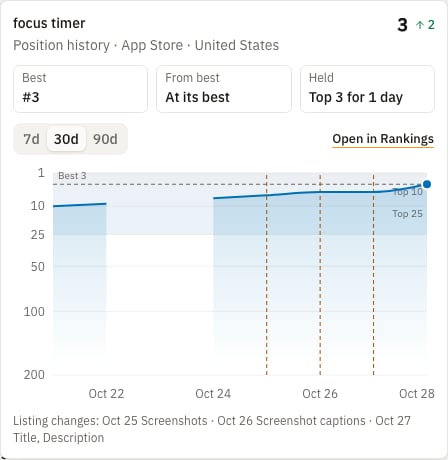
The Position column carries a chart button after the position of every keyword checked at least once, including one that is not ranking. It is always visible and opens with a click, a tap, Enter or Space, and Escape closes it. The popover shows the keyword with its store and market, the current position and its change since yesterday, and up to three facts: the best recorded position, how far the keyword sits below it and how many days the keyword has held its current tier, which is one of first place, top 3 or top 10. Best means the best position kept within ranking retention (RETENTION_RANKINGS_DAYS, 365 days by default), not the all time best. The streak counts checked days only: a day without a check, a drop out of the tier or a paused keyword restarts it, and it shows only while the keyword is active and its newest check is from today or yesterday UTC.
Under the facts, a chart draws the keyword’s position over the last 7, 30 or 90 days, 30 by default. Position 1 is at the top and the Top 3, Top 10 and Top 25 bands are shaded. A day the keyword was checked and not found is a gap in the line with a hollow dot at the bottom, at that day’s depth. A dashed line marks the best position, the newest check carries a ringed dot, and a dashed orange marker stands on each day the app’s listing changed in the keyword’s own market, so a change in another storefront never marks a keyword it cannot move. The changed fields are written under the chart and in the tooltip, which also reads the position of the day and how far it moved since the previous check. With fewer than four checks in the range the chart shows the checks as dots without a line, a range with no check offers the 90 day range, and a paused keyword shows its history up to its last check. Open in Rankings opens the Rankings page with that keyword and the chosen range selected.
Watch your request budget
Every keyword and every market adds daily requests against a fixed capacity set bySCRAPE_ITUNES_RPM and SCRAPE_GPLAY_RPM. The suggested markets in the guided setup show what each market would add before you track it.
The platform operator sees a daily request budget card in the Capacity section of the settings page, with the estimate broken down by kind, the capacity and a utilization meter, and the dashboard warns them at 85 percent of capacity. GET /jobs/budget returns the same numbers.
A customer of a hosted instance watches their keyword markets on the plan card instead. It counts the keyword markets the workspace tracks against its plan, and says since when the workspace has been over its keyword limit.
Troubleshooting
- A new keyword says Checking for long. Its check waits in the store queue behind the other work of the day, at the store rate limit. The row updates on its own for ten minutes and after a reload. If it stays, look for a failed
check-keywordjob on/admin/queues. - A keyword shows
>200every day. It was checked and the app was not in the top 200. See Positions and rank depth. - Popularity and difficulty are empty. Scoring runs weekly on
CRON_SCORING, which defaults to Sunday 04:00 UTC. - A popularity has an arrow before it. Apple listed the term at the lowest value it publishes for its genre, or left it out of its list, so the number says little more than that the term sits at or below the edge of Apple’s list. See What is a floor answer?.
- The budget card warns the operator the instance is over capacity. Remove keywords or markets, or raise the per store rate limit and accept the risk of the store throttling your IP address.
- The whole file shows as one column. The separator is read from a header row that names a keyword column, else only when every row has the same number of cells. Add a header such as
keyword,country, or save the file again from the spreadsheet so each row has the same columns. - The dialog says the file could not be read. The browser could not open it, often because it moved or is still syncing. Choose it again, or save a copy and choose that.
- Letters look wrong in the review. The file is not UTF-8, so it was read as Windows-1252. Save it as CSV UTF-8 and choose it again.
- A row says it is not a storefront. Use the two letter code of the storefront, such as
gbfor the United Kingdom. Google Play and the App Store have different lists. See Countries and markets. - A row is over limit. Your plan’s keyword limit is full. Remove keywords you no longer need, or move to a larger plan, then import the file again; the rows that were imported are skipped as already tracked.
Related
Read rankings and SERPs
Charts, SERP snapshots, volatility and movers.
Export data
Take the keyword table out as CSV.